Android FCM Credentials
On Android, Teak sends push notifications through Firebase Cloud Messaging (FCM). Setting this up has two halves:
-
Connect your game’s project to a Firebase project so the app can receive messages.
-
Hand Teak the FCM credentials it needs to send messages on your behalf.
We’ll do the project side first, then copy the credentials into Teak.
|
Firebase is required for Teak push notifications on Android. If your game doesn’t already use Firebase, you’ll add it in the steps below: connecting your app to a Firebase project ( |
Add Firebase to your Android Project
If your game is already connected to a Firebase project, you can skip ahead to Connect Your Credentials to Teak.
-
Open the Firebase Console and create a project for your game, or open the existing one.
-
In the project, click the Android icon to register an Android app. Enter your app’s package name (the
applicationIdfrom your app-levelbuild.gradle). The nickname and debug signing certificate are optional. -
Download the generated
google-services.jsonfile and place it in your app module directory (theapp/folder, alongside itsbuild.gradle). -
Add the Google Services Gradle plugin so the build picks up
google-services.json.In your project-level
build.gradle(orsettings.gradleif you use the plugins block), declare the plugin:plugins { // ... other plugins id 'com.google.gms.google-services' version '4.4.2' apply false }Then apply it in your app-level
build.gradle:plugins { id 'com.android.application' id 'com.google.gms.google-services' }Google occasionally bumps the plugin version. For the authoritative, current steps, see Firebase’s own Add Firebase to your Android project guide. You do not need to add the Firebase SDK dependencies it lists — firebase-messagingis covered as one of Teak’s own required dependencies in the next step.
With your app connected to Firebase, you can copy the credentials over to Teak.
Firebase Cloud Messaging (v1) Credentials Guide
In order to send notifications to your game on Android, Teak needs your Firebase Cloud Messaging (FCM V1) credentials.
In this guide, we’ll download a Service Account Key (in JSON format), and copy the Sender ID value from your Firebase console, and input those into Teak.
You will need the following accounts to complete this step:
-
An account on the Firebase Console with an Editor or Owner role and access to your game
-
An account on Teak with access to your game
Open in your Firebase project.
-
Go to your Firebase Console and open the project for your game. This must be the same project that you are using to authenticate the Firebase SDK in your game.
If you need to confirm that you have the correct Firebase project: Open the
google-services.jsonfile from your project and find theproject_number. Confirm that the value matches theSender IDvalue on the Cloud Messaging tab. -
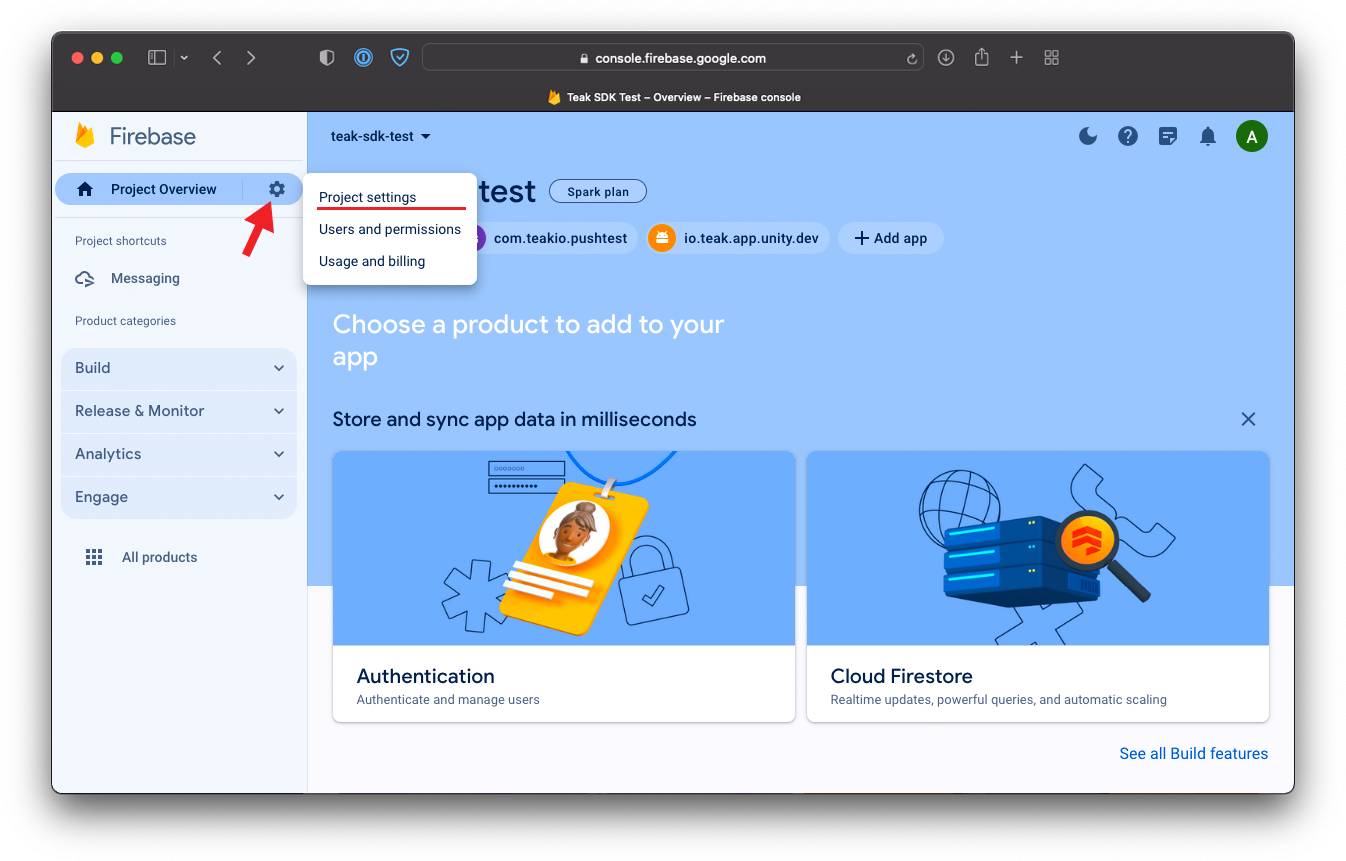
Click the gear icon in the upper left corner, and click Project settings.
-
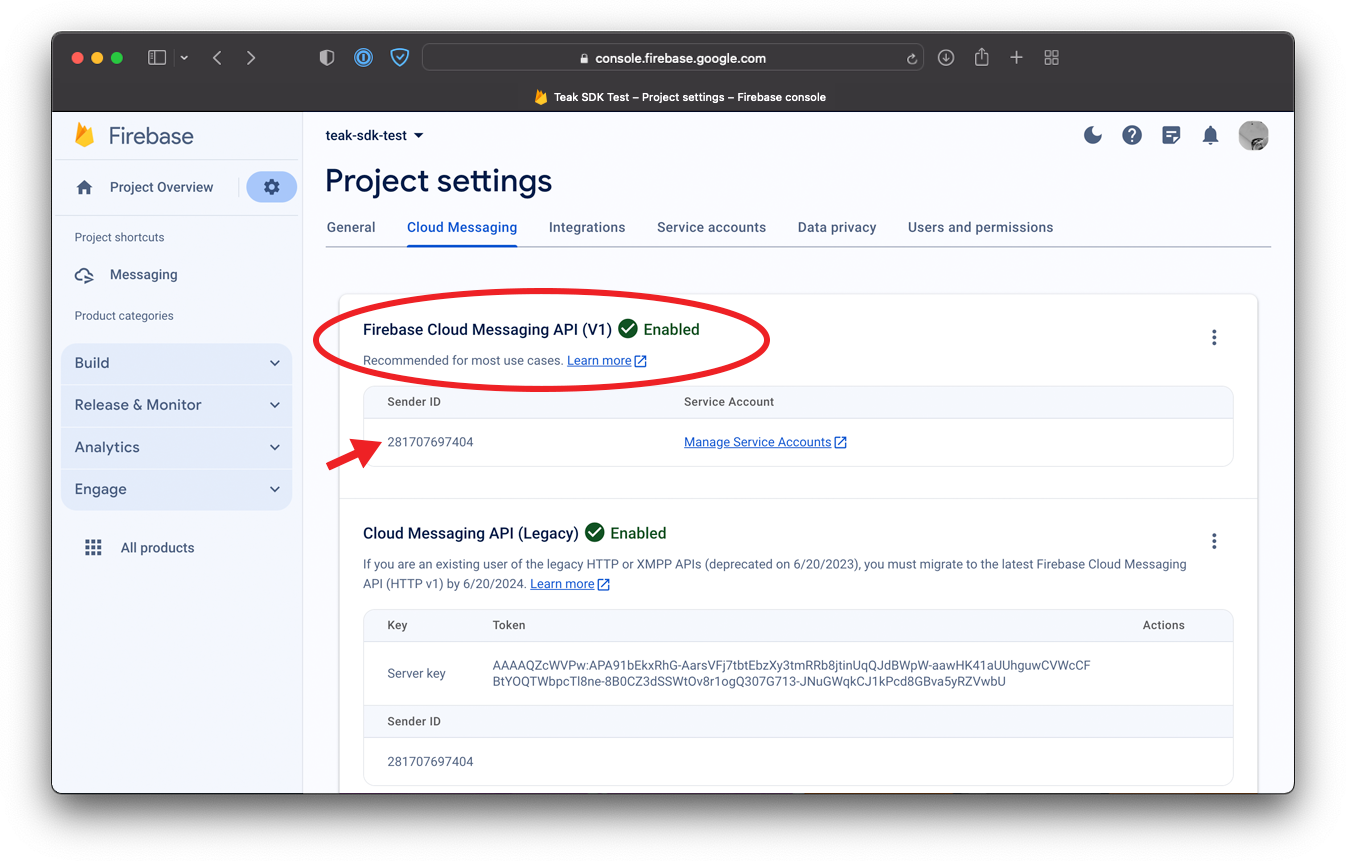
Click on the Cloud Messaging tab.
Enable Firebase Cloud Messaging API (V1), (if it isn’t already enabled).
-
Make sure that Firebase Cloud Messaging API (V1) is enabled. Support for FCM (Legacy) will be discontinued by Google on June 20th, 2024.
Enabling Firebase Cloud Messaging API (V1)If the V1 API isn’t enabled, proceed with these steps to activate it.
-
In the Firebase Cloud Messaging API (V1) section, click on the 3 vertical dots. ⋮
-
Click Manage API in Google Cloud Console.
-
In the new tab that opens, click Enable.
-
This will load the API/Service Details page. After the page has loaded, close this tab.
-
Return to the Firebase Console page and refresh the page.
-
Firebase Cloud Messaging API (V1) should now be enabled.
-
Copy the Sender ID to Teak
-
In the Teak Dashboard for your game, navigate to .
-
Click Setup Firebase Cloud Messaging (V1) to open the FCM setup modal.
-
Copy
Sender IDfrom Firebase to theFCM Sender IDfield in the setup modal for Teak.
Leave this modal open for the next step.
Generate a Service Account Key in Firebase
-
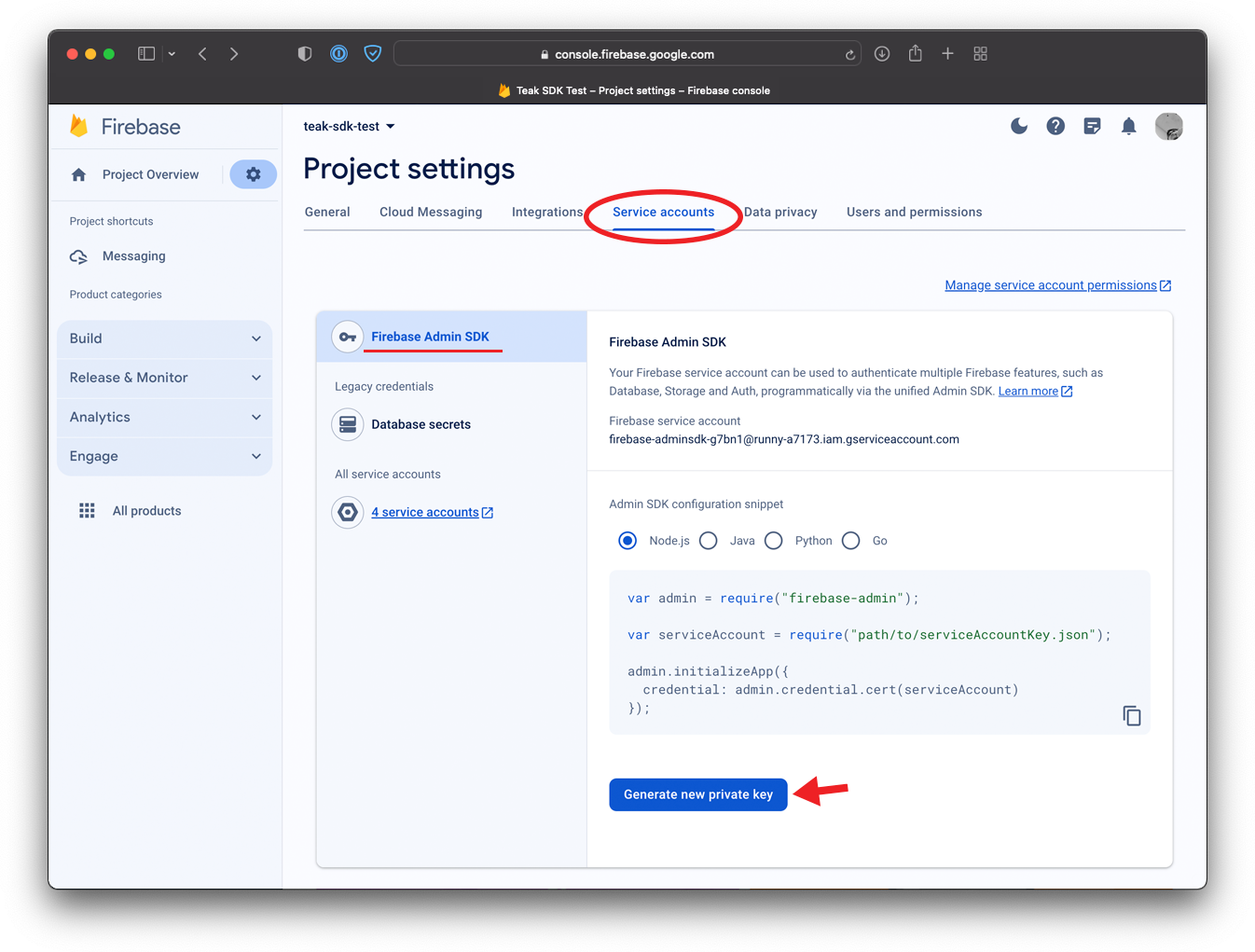
Back in the Firebase dashboard, click the Service accounts tab.
-
By default, the Firebase Admin SDK service account will be selected. This is fine for most cases.
-
Click the Generate new private key button and confirm you want to Generate key in the popup. This will download a
private keyas aJSONfile.
Amazon Fire Devices
If you also ship to Amazon Fire devices, those use Amazon Device Messaging (ADM) rather than FCM. The Teak SDK’s manifest entries for ADM (services, receivers, and permissions) are already bundled in the AAR and merge into your app automatically — there’s nothing to add there.
What you do need is Amazon push credentials: Finding your Amazon Device Messaging Credentials. Store the resulting API key as assets/api_key.txt in your app module, per Amazon’s Store Your API Key as an Asset guide.